A few weeks ago I installed the Windows 7 public beta on one my desktops to get it a whirl and see what it’s like. I was pretty impressed with it..so much that I even went and installed it on my laptop a week ago. Windows 7 is what will replace Windows Vista, which has been beaten and battered upon by critics and the like ever since it’s came out. That mainly happens just because it’s slower than Windows XP and when it first came out there was just a heck of a lot of incompatibilities with programs and devices. Windows 7 is meant to get rid of the negative image that Vista had cast and be a leaner than what Vista is.
At its core Windows 7 is essentially Vista. Anyone that’s used Vista will see the many similarities between the two. However it is indeed leaner than Vista is, at least that what it seems to me. I only have 1 GB on my laptop, and to me it doesn’t seem too terribly slow either. People usually say that if you want to run Vista decently you need 2 GB. Although if I were to swap out 1 of my 512 MB RAM sticks with a 1 GB to give me 1.5 GB I’d noticed a speed improvement with Win7 as well, but 1 GB is manageable for my use.
Anyway enough talking…time for the eye candy :P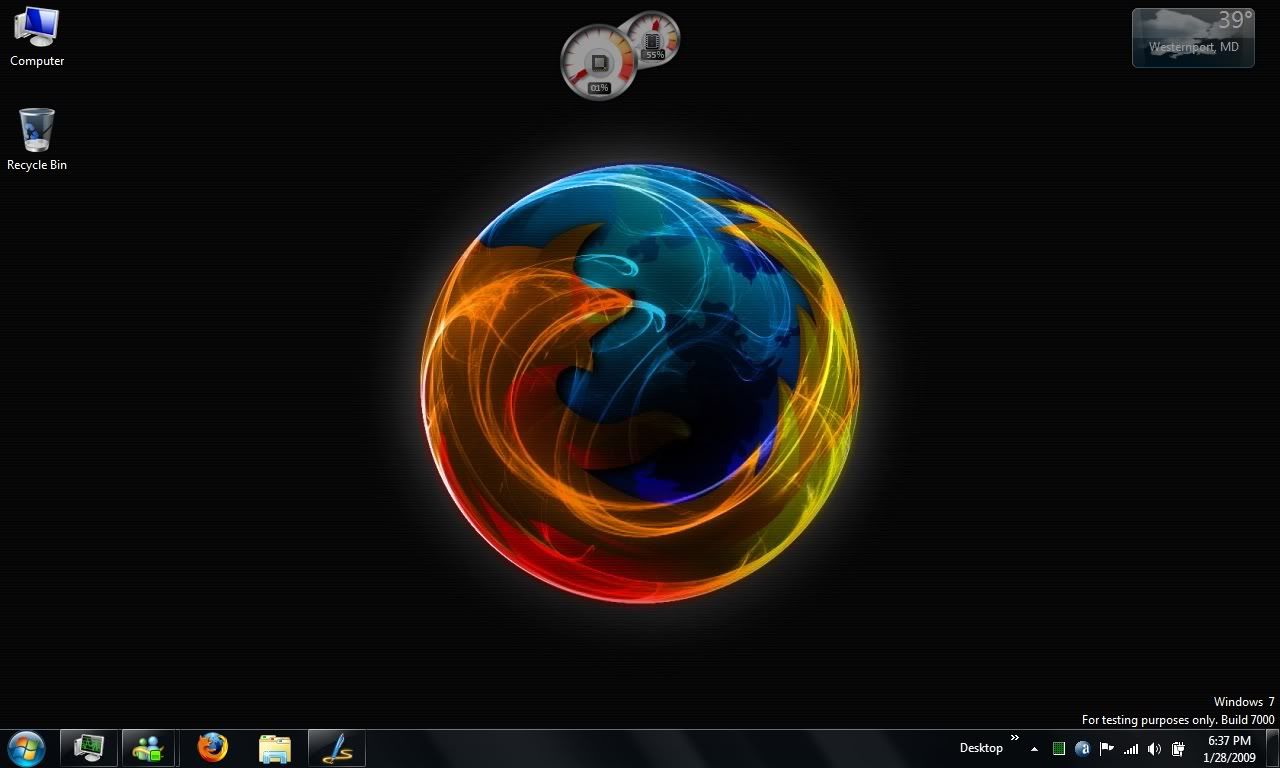
That is my Windows 7 desktop on my laptop. Click on it for the full size image, the same goes for all pics that’ll end up in here. One noticeable change is the taskbar, which Microsoft has been calling the “Superbar.” All of the taskbar items are icons and you can move the icons about into whatever order you please unlike past Windows versions. Multiple windows of a program get lumped together into the one icon. If you still like the thinner taskbar with items like in the past you can change that in the Taskbar properties. One neat thing is that you can pin items to the taskbar like you could to the start menu, that way just click on the icon on the taskbar and go.
The gadgets can also be placed wherever you may please on the desktop, instead of being confined to the sidebar like in Vista. So Windows 7 does not actually have the sidebar
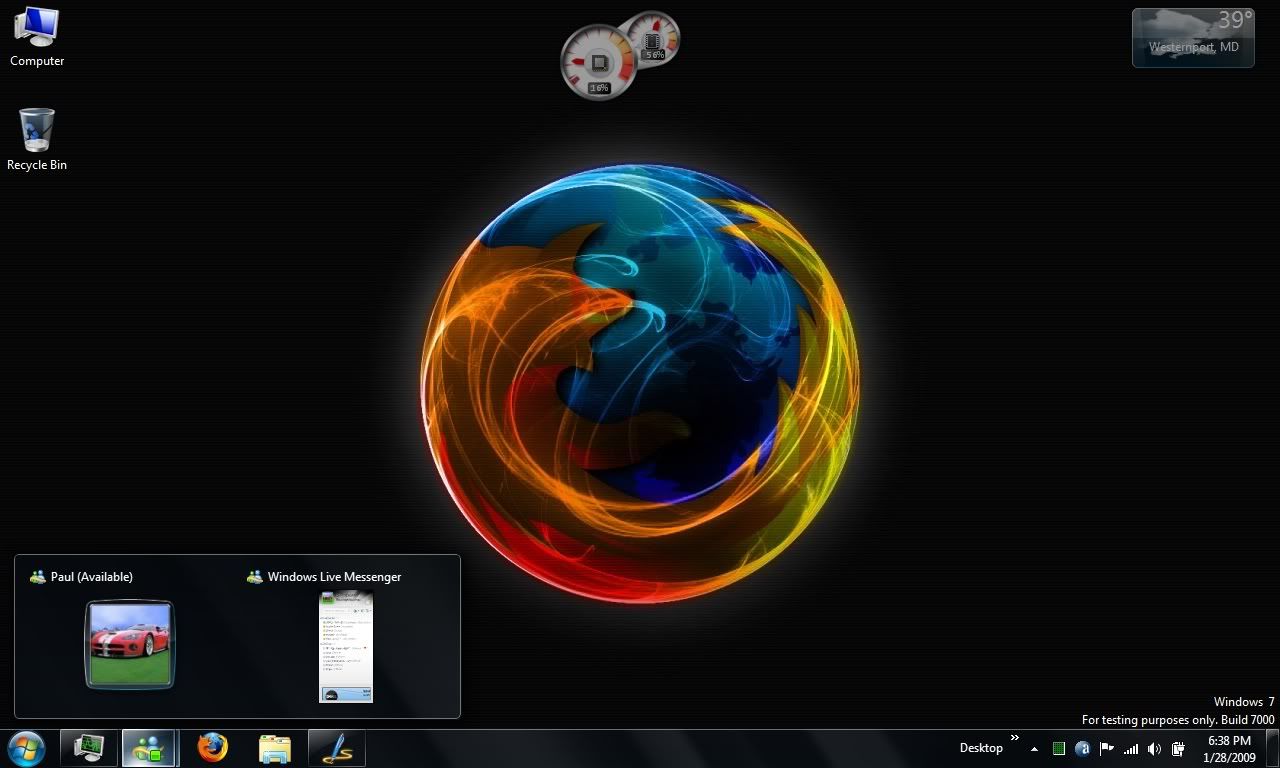
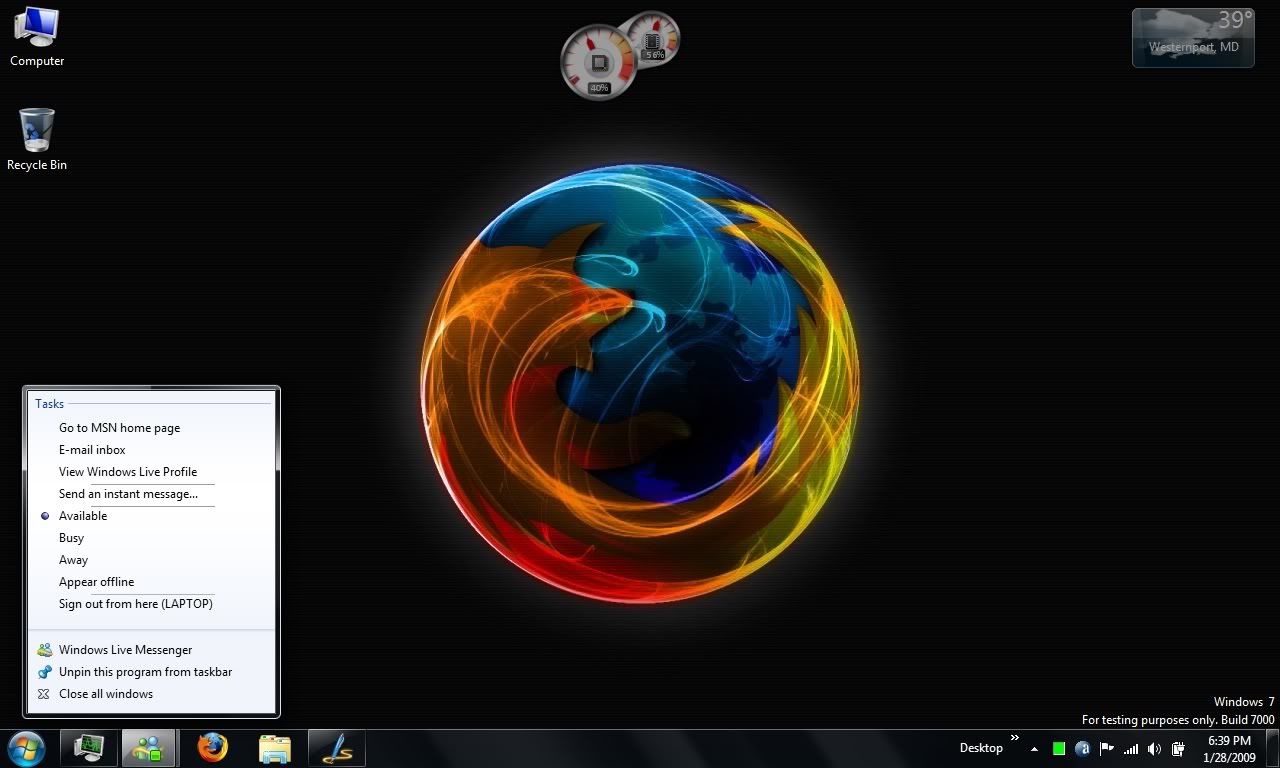
Another new feature is the jump lists. If you computer supports Aero, hovering your mouse on an icon reveals a jump list with thumbnail previews of the windows. If Aero isn’t enabled then you will just have a list with the names of the windows shown. Right clicking on the icon also provides a different style of menu compared to the old right click menu of just close, maximize, etc.
One more new taskbar feature is over on the very right. That is the show desktop button, clicking that minimizes windows and shows the desktop, obviously. Click it again restore everything that wasn’t minimized before the button was clicked the first time. For those with Aero enable, the button does another trick. Simply hovering over the button shows the desktop but with the outlines of open windows. That little feature is being called Aero Peek.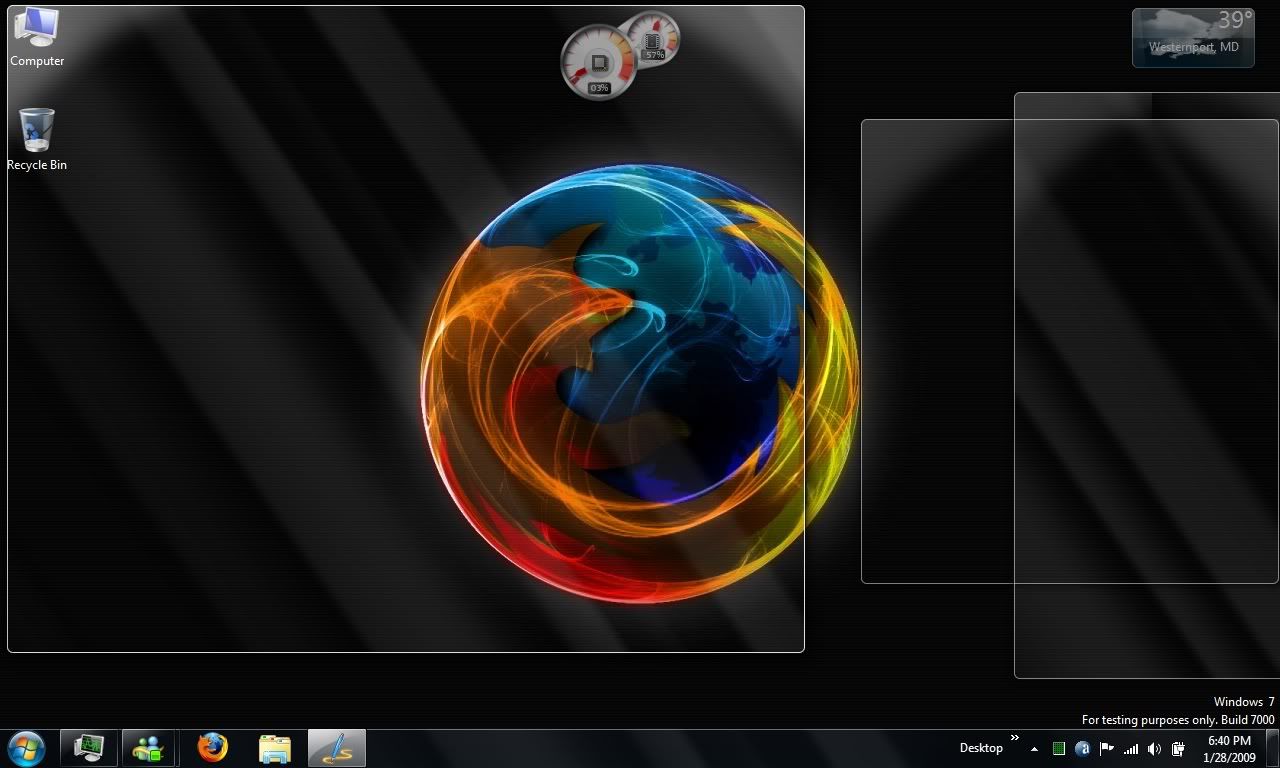
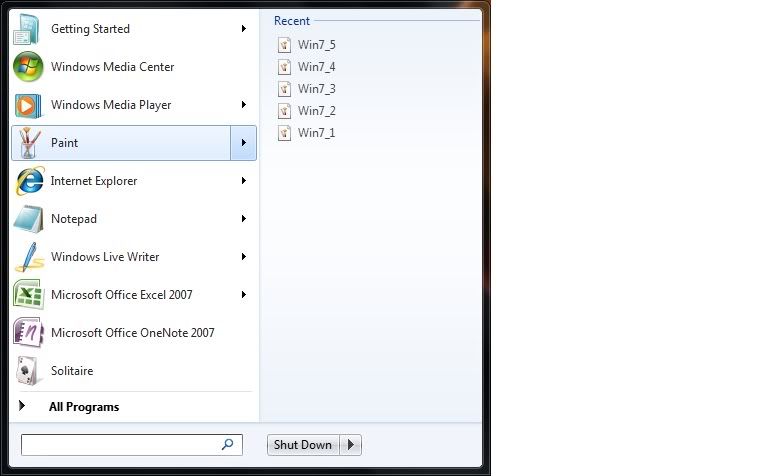
The start menu even has went through a small change, because now some programs that appear on the recent programs list can also show a list of recently opened or saved items.
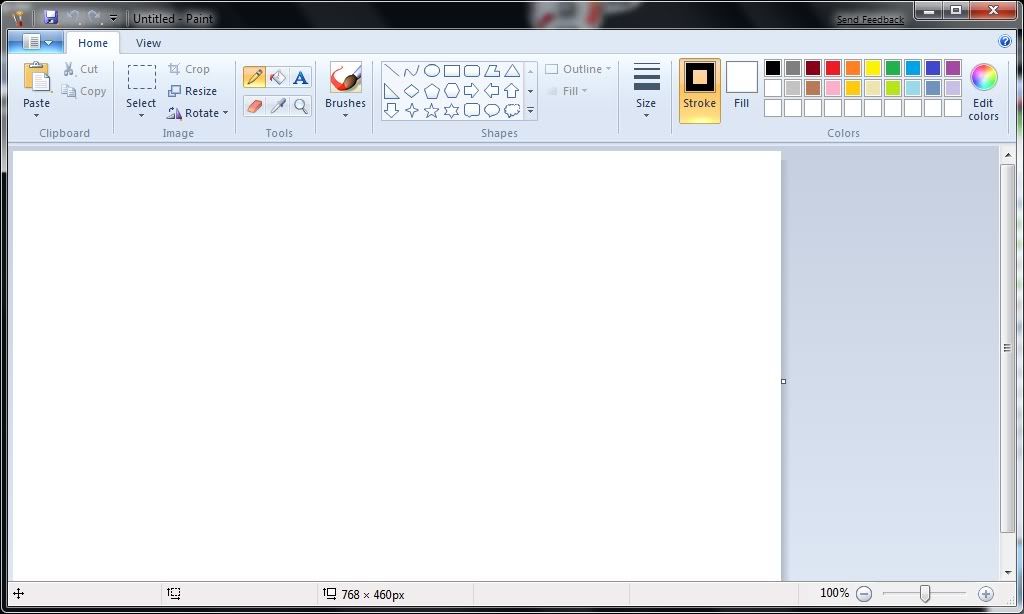
One other changes include WordPad and Paint bring overhauled with the ribbon-style interface similar to Office 2007.
So that’s Windows 7 in a nutshell. No one knows exactly when it’s coming out yet. Microsoft says early next year, but others are saying before the end of the year so it can be preloaded onto new computers in time for the holiday rush. We’ll just have to find out.

